Guide
How to scan documents with your phone so they are clear and accepted
- Light
- Daylight from a window, not a bulb right overhead
- Background
- Plain and dark, so the page edges stand out
- Cards
- Front and back, saved together as one document
A phone scan gets rejected for small reasons: a shadow, a glare spot, a cut-off corner. Get the light and the angle right, and your phone is all the scanner you need.

A real moment
“The college portal rejects your mark sheet scan for the second time. It looks fine to you, but a grey shadow falls across one side and the top corner is missing. The cyber cafe down the road is shut until Monday.”
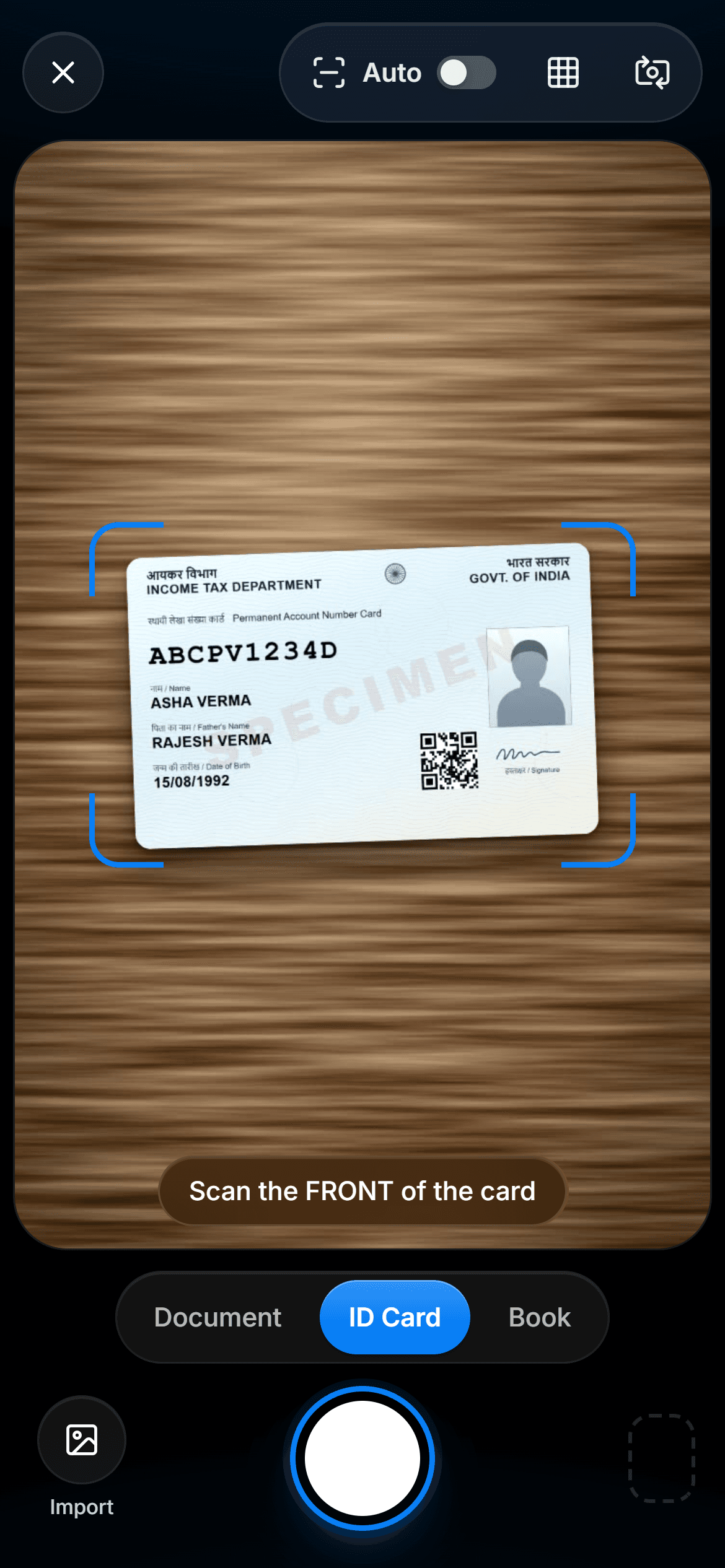
Put the page flat on a dark surface in soft daylight, hold the phone straight above it, and avoid glare. Capture both sides of any card. DigiSafe finds the edges, straightens the page and warns you about blur, glare or a dark shot before you save.
Finds the edges and straightens the page
Warns you about blur, glare and dark shots
Front and back of a card saved together
Light
Daylight from a window, not a bulb right overhead
Background
Plain and dark, so the page edges stand out
Cards
Front and back, saved together as one document
Check
Zoom in on the smallest print before you save
Light does most of the work
Soft daylight from a window beats any camera setting. A bulb right above the page puts your own shadow across it, and a lamp close by makes a bright spot. If the room is dim, move somewhere brighter first. The flash helps on plain paper, but it bounces off glossy cards.
Flat, dark and straight
Lay the page on something plain and darker than the paper, like a dark table or a bedsheet, so the edges stand out. Press out the folds, keep your fingers out of the frame, and hold the phone straight above the middle of the page, not at an angle.
Beat the glare, then turn the card over
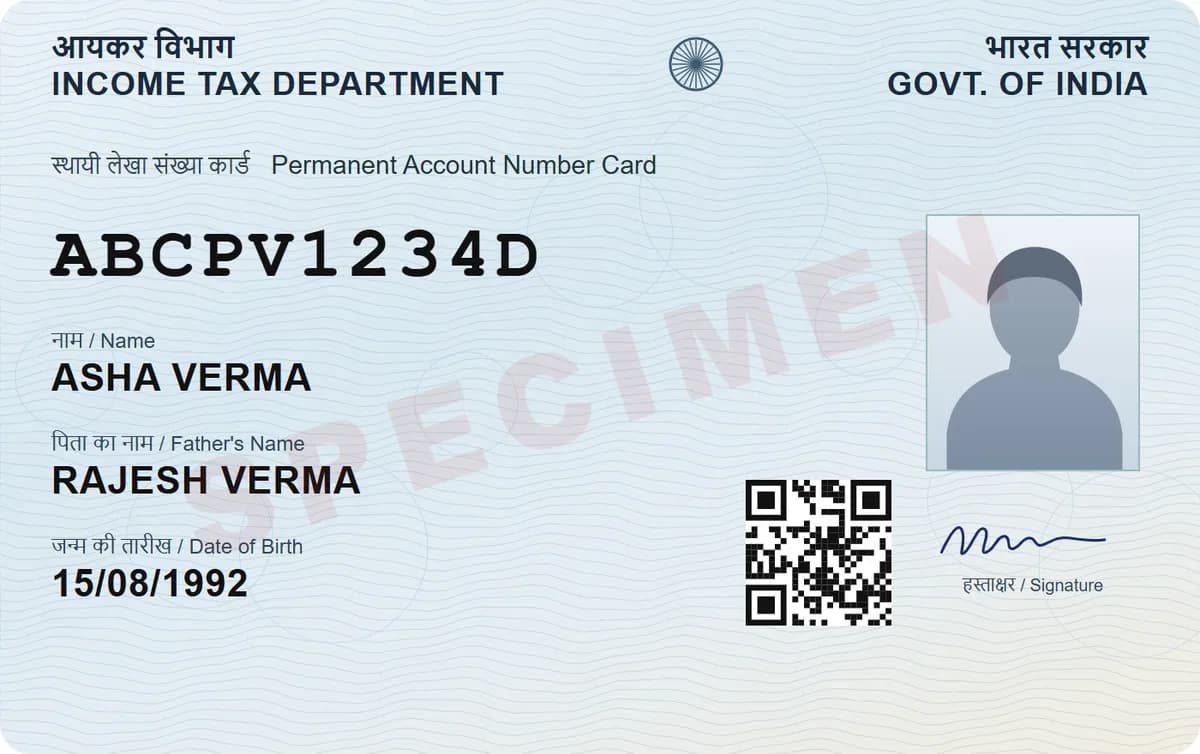
Laminated cards and glossy paper throw light straight back at the camera. Tilt the card a little, or step away from the light above you, until the white patch moves off the text. Then scan the back as well. Many cards keep half their details there, like the address on an Aadhaar.
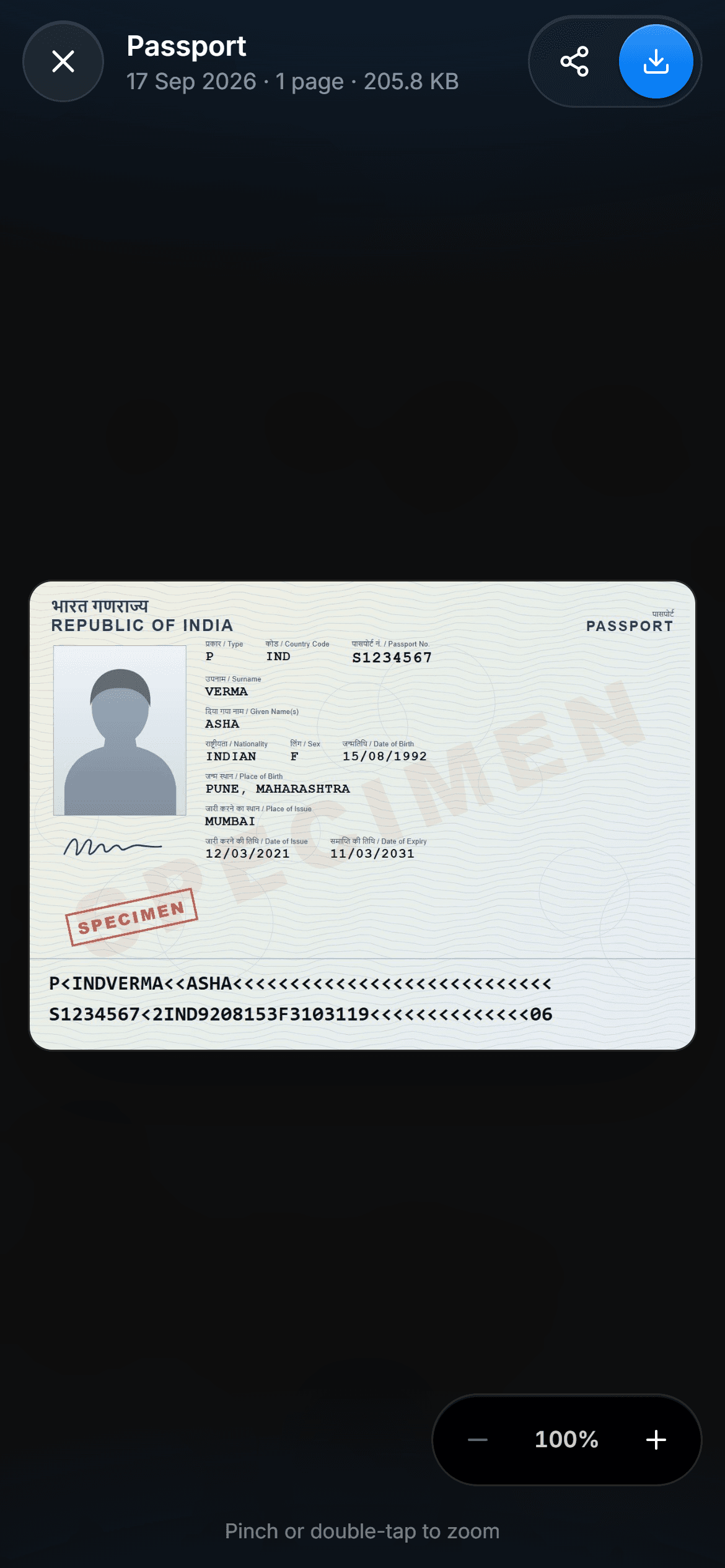
Pick a filter, then zoom in
Enhance suits everyday paper, Whiten rescues a grey photocopy, and Original keeps a photo or a coloured seal true. Then zoom in on the smallest print. If you cannot read it on your screen, the person checking it will not read it either.
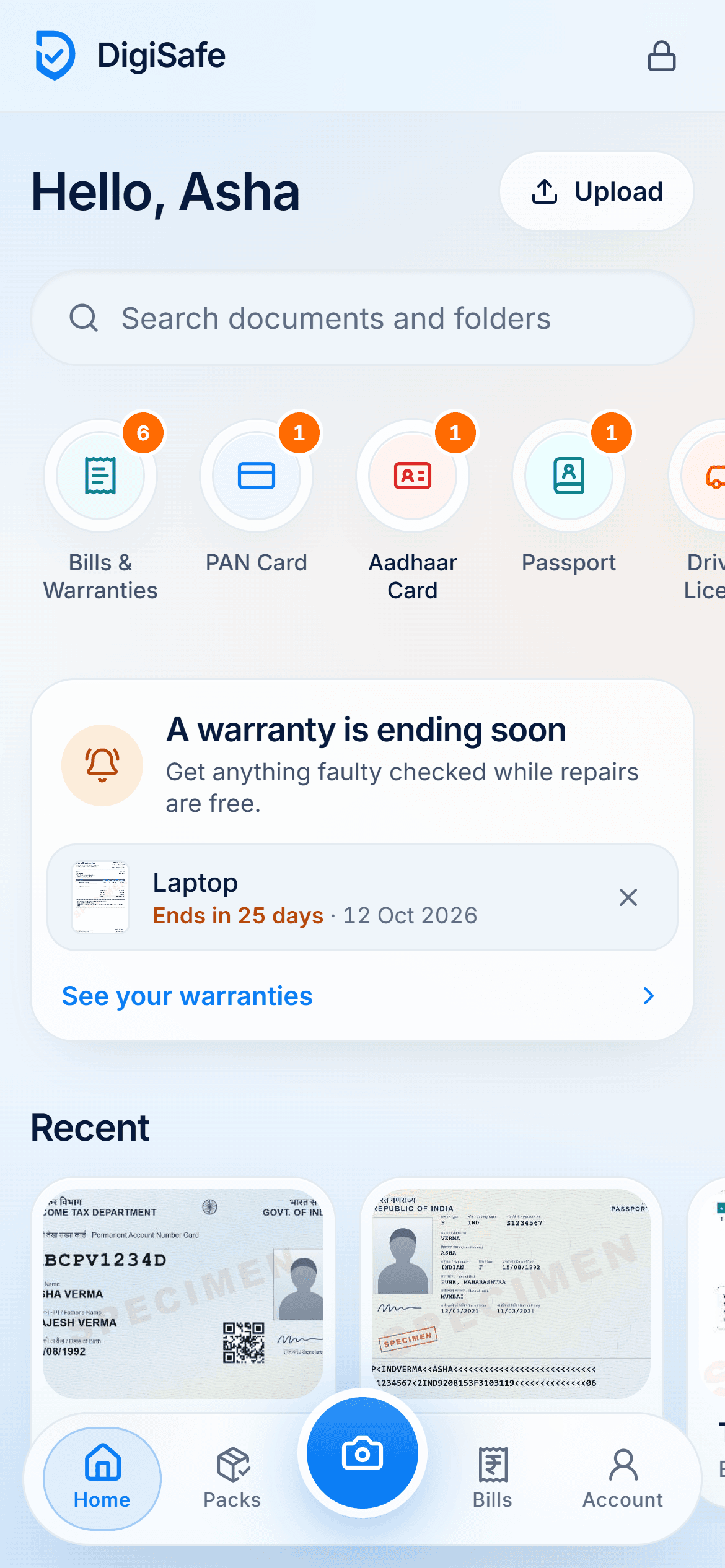
Watch it
DigiSafe's document scanner in 16 seconds
The scanner finds the edges, straightens the page and shoots when your hand is still. ID cards get a front and a back.
Step by step
- 1
Put the page on a plain, dark surface near a window.
- 2
Open DigiSafe, tap the camera button and choose Document or ID card.
- 3
Hold the phone straight above the page and tap the shutter, or turn on Auto.
- 4
For a card, turn it over when asked and scan the back.
- 5
For more pages, keep shooting. They stay in one document.
- 6
Check the corners, pick a filter, zoom in on the small print and save.
Questions people ask
Why does the portal keep rejecting my scan?+
Usually because it is blurry, dark, cut off or too big. Fix the first three with better light and a straight angle. For size, make a smaller copy at the limit the form states.
Can I scan a document to PDF on my phone?+
Yes. Scan the pages into one document, then share it as One PDF. If the form caps the size, use Make it smaller and choose PDF.
Should I use the flash?+
Only when you cannot move to better light. It helps on plain paper, but on a glossy or laminated card it often adds glare.
Does scanning need internet?+
No. Scanning, straightening and saving happen on your phone. Your scans back up by themselves when you are online again.