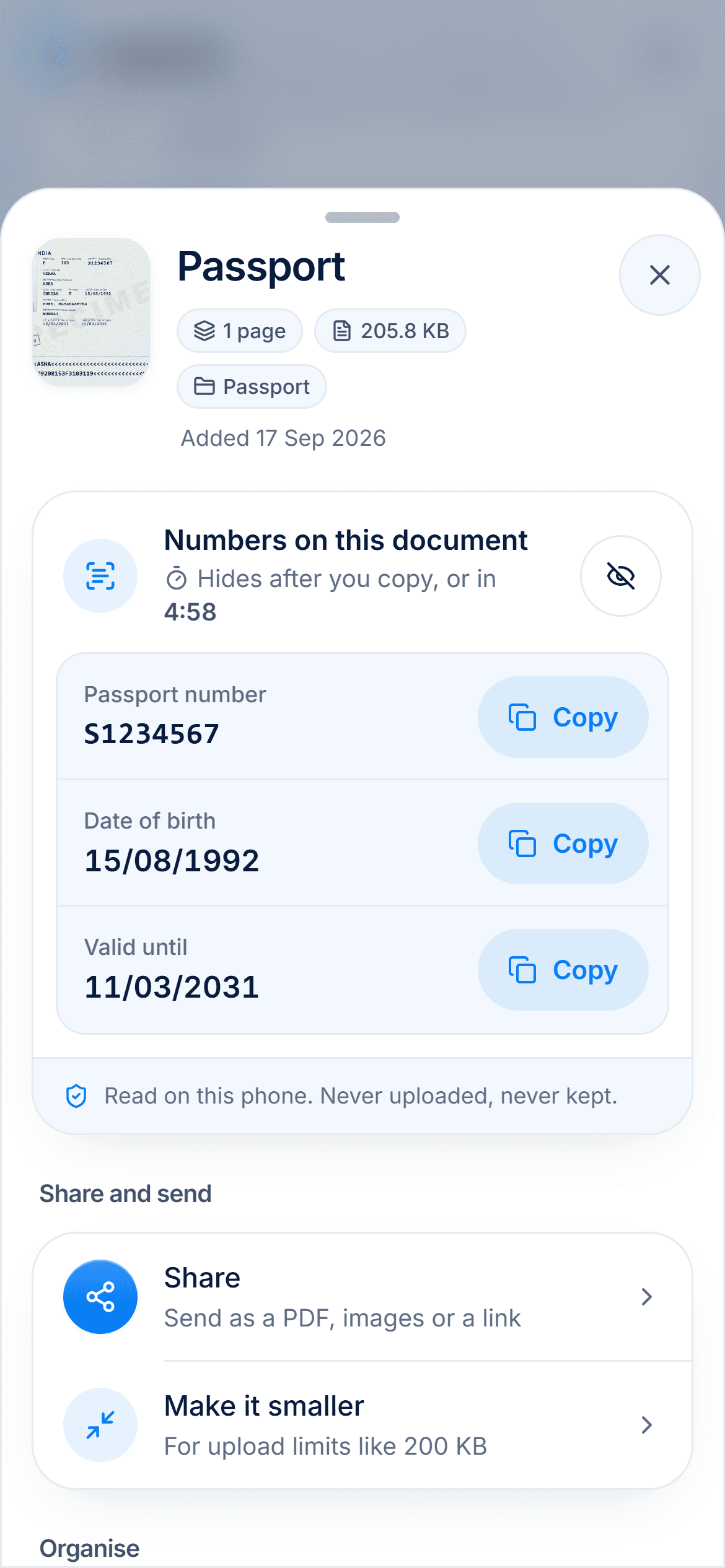
Document scanner
Scan any document straight and sharp, even on a messy table
- Modes
- Document, ID card (front and back), Book
- Filters
- Original, Enhance, Whiten, Brighten, Gray, Ink
- Capture
- Tap the shutter, or turn on Auto to shoot when the page is still
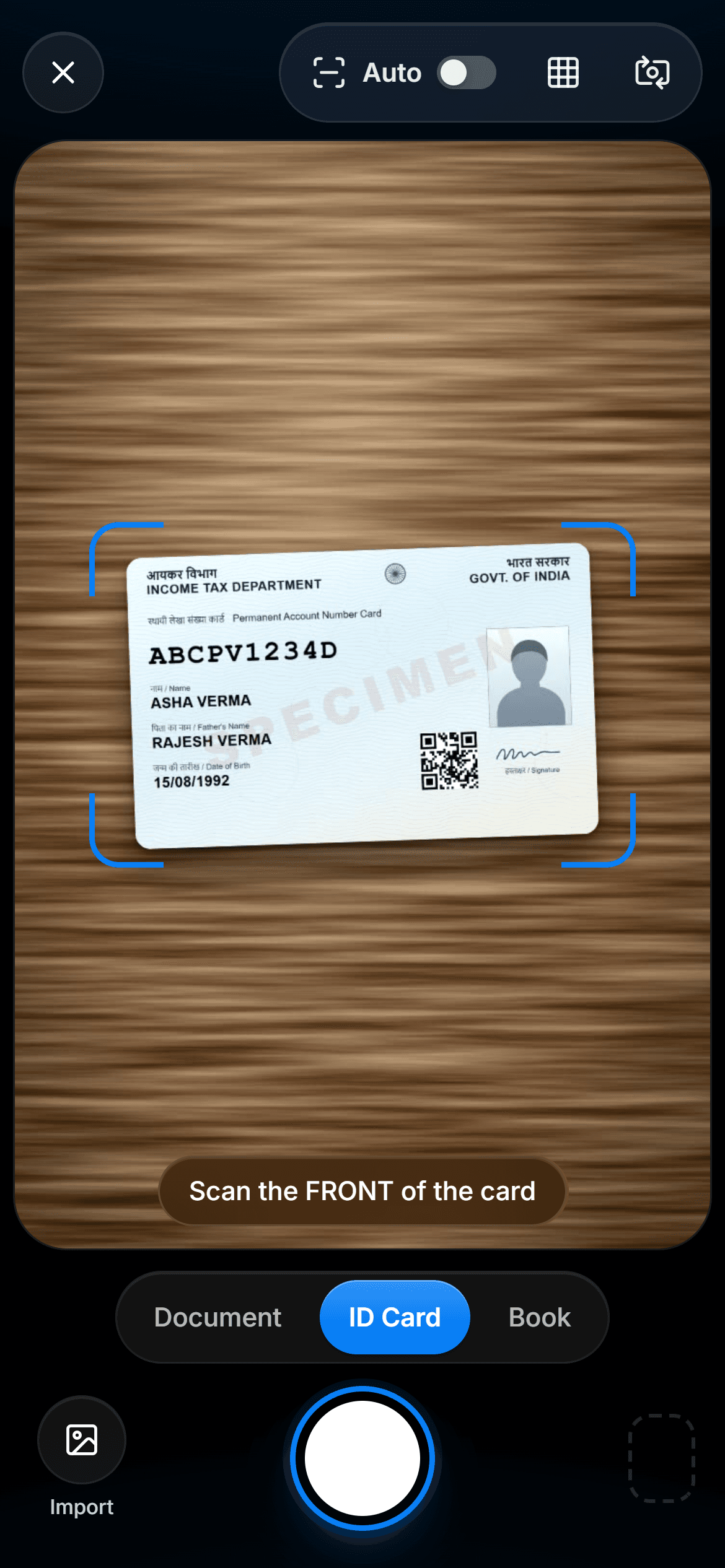
Hold your phone over the page and let DigiSafe do the hard part. It finds the edges, straightens the page and, with Auto on, takes the photo the moment your hand is still.

A real moment
“The bank wants a copy of your PAN card today. The only flat surface is a busy kitchen table, and your photo comes out tilted, with your thumb in one corner. It looks like a snapshot, not a document.”
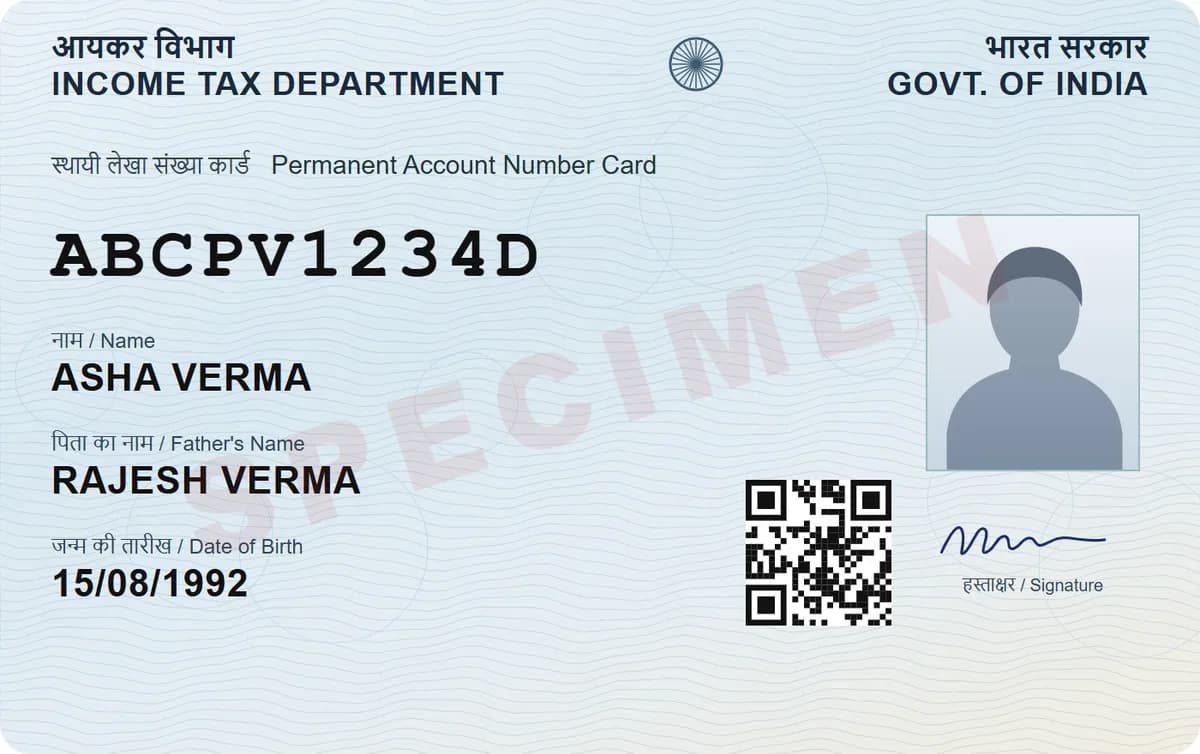
DigiSafe scans documents with your phone camera. It finds the edges, corrects the angle and saves a clean, straight copy, which is encrypted on your device before it is stored.
Watch it
DigiSafe's document scanner in 16 seconds
Finds the corners and straightens the page
Saves the front and back of a card as one
Free, with no watermark on your own copies
Modes
Document, ID card (front and back), Book
Filters
Original, Enhance, Whiten, Brighten, Gray, Ink
Capture
Tap the shutter, or turn on Auto to shoot when the page is still
Checks
Warns about blur and glare, never blocks you
Cost
Free, with no watermark on your own copies
It straightens the page for you
A photo taken at an angle looks like a photo. A scan looks like the document. DigiSafe finds the four corners, fixes the angle and cuts away the table underneath. If a corner is wrong, drag it, and it stays where you put it.
Front and back, kept together
Cards keep half their details on the back. ID card mode asks for the front, then the back, and saves both sides as one document. You never send the address side without the number side.
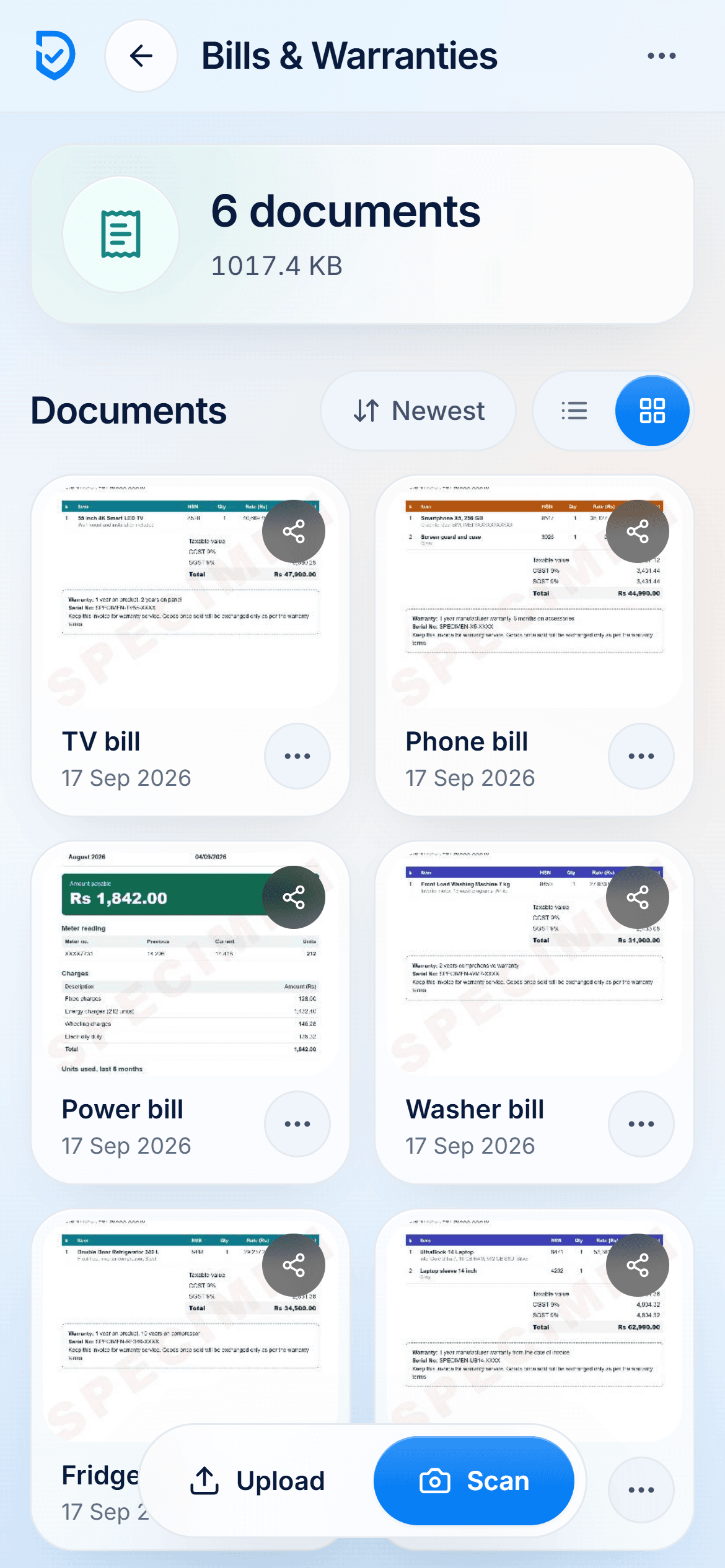
Six filters for tired paper
Enhance is for everyday paper. Whiten rescues a grey photocopy, and Brighten helps in a dim room. Gray and Ink suit forms that must print cleanly. Original keeps the colour when it matters.
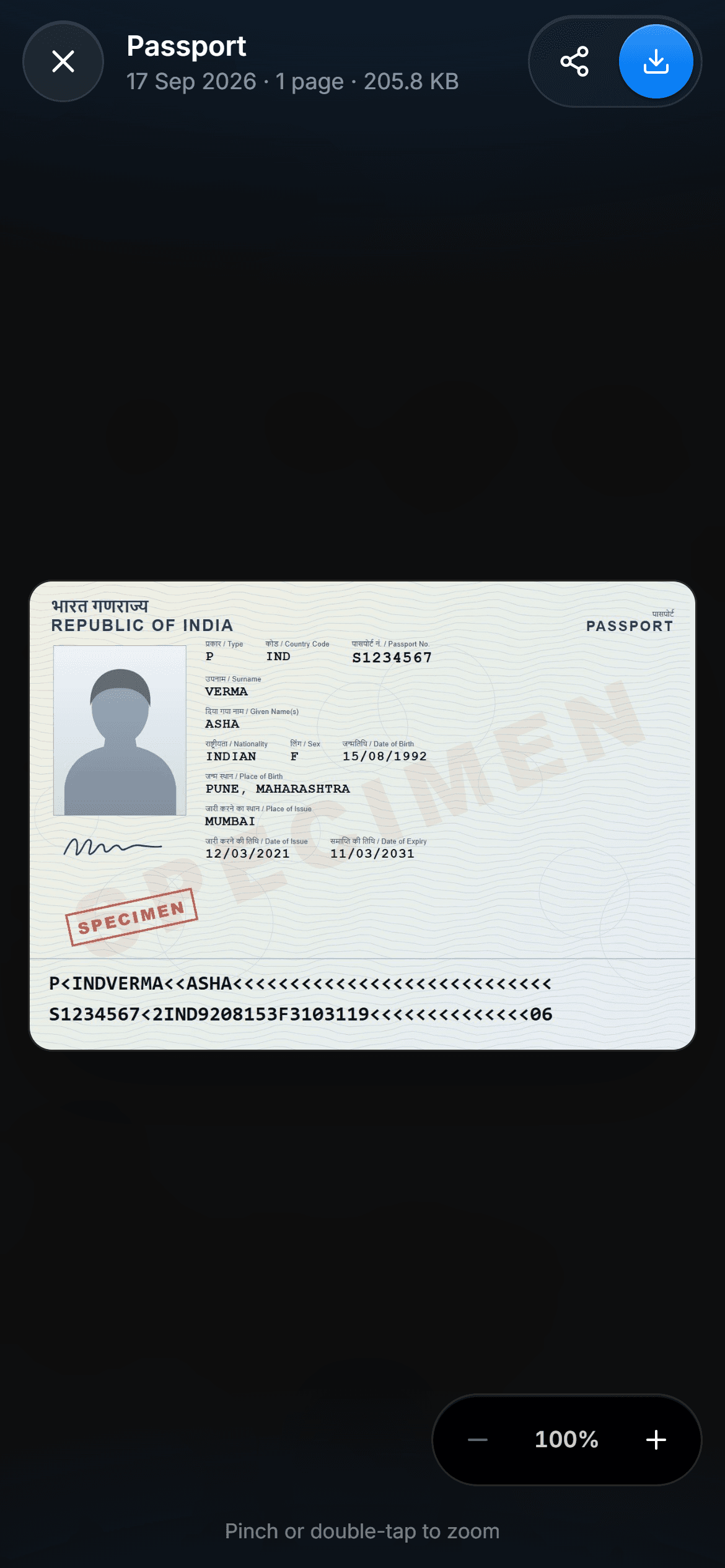
Scanned on your phone, not on a server
All the scanning happens on your phone. The finished page is encrypted with AES-256-GCM before it is saved. The copy that reaches our storage is one we cannot open.
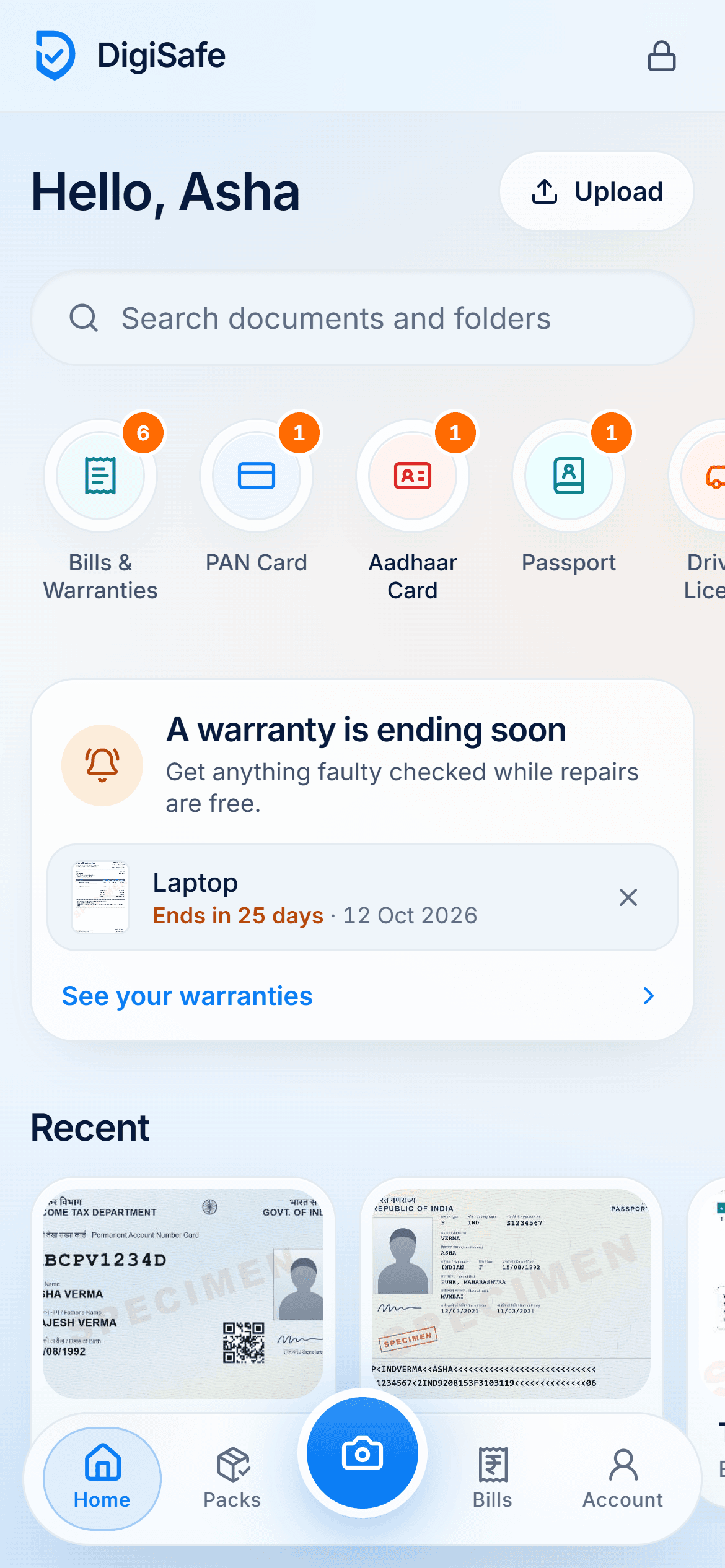
How to do it
- 1
Open DigiSafe and tap the camera button.
- 2
Choose Document, ID card or Book.
- 3
Hold the phone over the page. Tap the shutter, or turn on Auto and it shoots when the page is still.
- 4
Check the corners and pick a filter.
- 5
Save it to a folder.
Questions people ask
Does the scanner work without internet?+
Yes. Scanning, straightening and saving all happen on your phone. Your changes back up by themselves when you are online again.
Can I scan several pages into one document?+
Yes. Keep shooting. The pages stay together in one document, in the order you scanned them.
Can I import a photo or PDF I already have?+
Yes. Bring in up to 30 files at a time, up to 30 MB each. A PDF is kept exactly as it is, not turned into pictures.
What if my photo is blurry?+
DigiSafe warns you about blur and glare, so you can take it again. It never blocks you. The choice to save is always yours.