
Guide
How to download your Aadhaar card (e-Aadhaar), including the masked version
- Where
- myAadhaar portal or the Aadhaar app
- You need
- Your registered mobile, for the OTP
- Password
- First 4 letters of your name in capitals, plus birth year
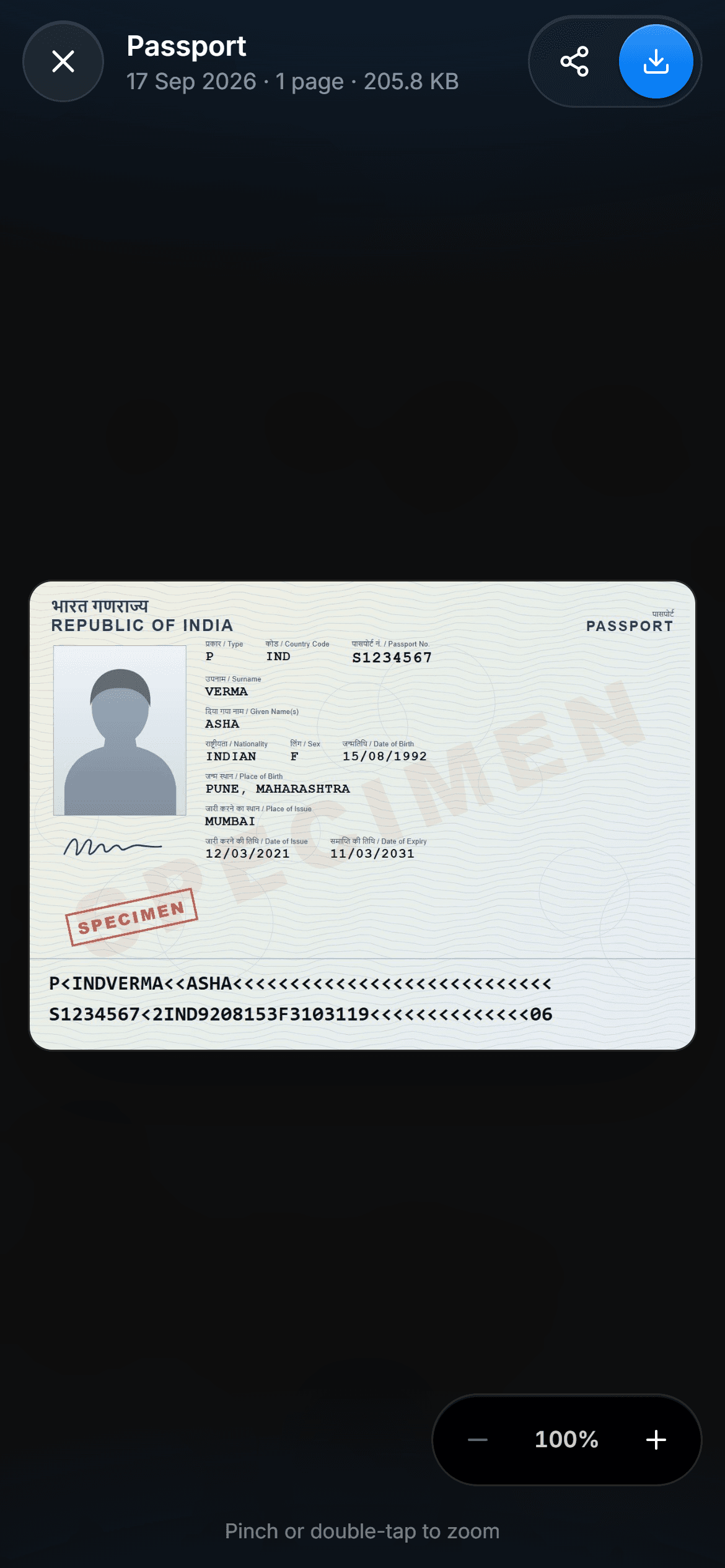
e-Aadhaar is the official digital copy, signed by UIDAI and valid like the card. Here is how to download it, and how to pick the masked version that hides your number.

A real moment
“A form needs your Aadhaar tonight and the card is in a drawer at your parents' house. Your phone has your number, and the registered mobile is in your hand.”
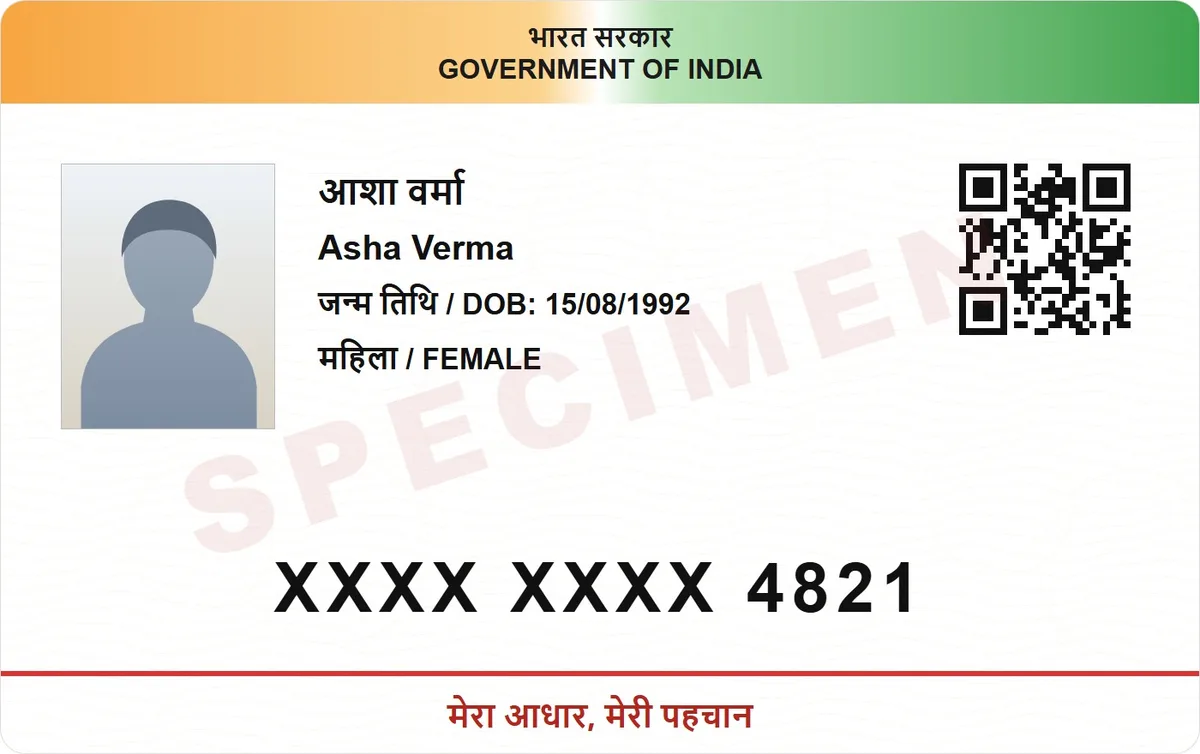
Go to myaadhaar.uidai.gov.in, choose Download Aadhaar, enter your Aadhaar number, VID or enrolment ID with the captcha, pick Regular or Masked, and enter the OTP sent to your registered mobile. The PDF's password is the first four letters of your name in capitals plus your year of birth.
Step by step from UIDAI's own site
Choose the masked version
The PDF password, explained
Where
myAadhaar portal or the Aadhaar app
You need
Your registered mobile, for the OTP
Password
First 4 letters of your name in capitals, plus birth year
Validity
As valid as the physical card
Where to download it
UIDAI says you can download e-Aadhaar from its myAadhaar portal or from the Aadhaar app. It is a password-protected PDF, digitally signed by UIDAI, and under the Aadhaar Act it is as valid as the physical card for every purpose.
The steps on myAadhaar
Open the download page and choose how to identify yourself: your Aadhaar number, Virtual ID, enrolment ID, or the SID from your update slip. Enter it with the captcha, choose Regular or Masked, then tap Get OTP. The OTP goes to the mobile number registered with your Aadhaar.
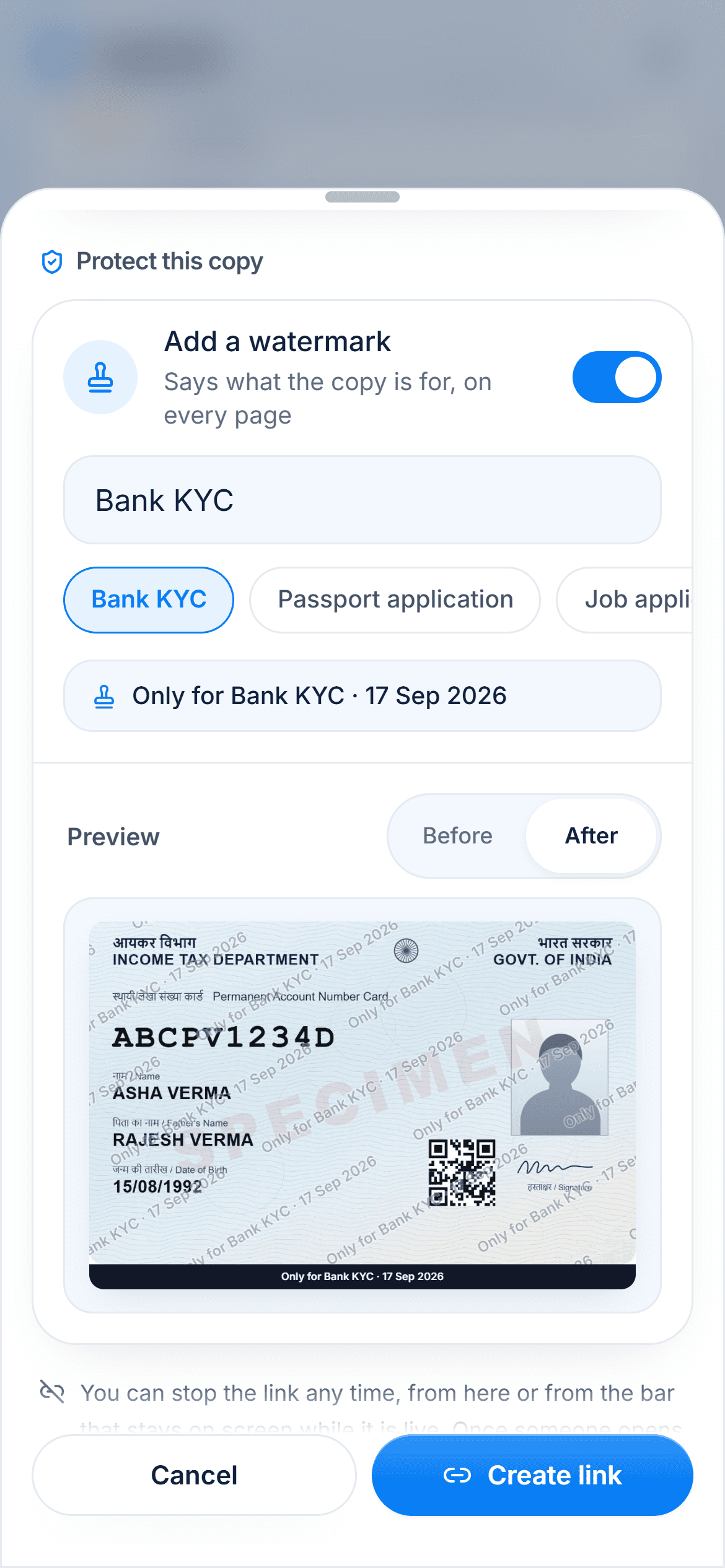
Choose Masked to hide your number
Pick Masked under Select type. A masked Aadhaar replaces the first eight digits with xxxx-xxxx and shows only the last four. It is the version to give anyone who only needs to see that you have an Aadhaar.
The PDF password
The password is the first four letters of your name in capitals, followed by your year of birth. UIDAI's example: Suresh Kumar, born in 1990, opens his with SURE1990. A shorter name uses what it has, so Ria, born in 1990, uses RIA1990.
Keeping it in DigiSafe
DigiSafe cannot import a password-protected PDF yet. Keep the official PDF as it is for uploads that need the digital signature, and add a copy to DigiSafe by scanning a printout or saving an unlocked copy.
Step by step
- 1
Open myaadhaar.uidai.gov.in and choose Download Aadhaar.
- 2
Enter your Aadhaar number, VID or enrolment ID, and the captcha.
- 3
Choose Regular, or Masked to hide the first eight digits.
- 4
Tap Get OTP and enter the code sent to your registered mobile.
- 5
Open the PDF with your password, such as SURE1990.
- 6
Keep the PDF safe, and add a copy to DigiSafe.
Questions people ask
What is the password for the e-Aadhaar PDF?+
The first four letters of your name in capitals, followed by your year of birth. For Suresh Kumar, born in 1990, it is SURE1990.
Is a downloaded e-Aadhaar valid?+
Yes. UIDAI says that under the Aadhaar Act, e-Aadhaar is as valid as the physical copy for all purposes.
How do I download a masked Aadhaar?+
On the myAadhaar download page, choose Masked under Select type before you request the OTP. The PDF shows only the last four digits of your number.
Can I download Aadhaar without my registered mobile?+
The download needs the OTP sent to the mobile number registered with your Aadhaar, so update your mobile number first if you no longer have it.
Where this comes from
Official sources, dated.
Every requirement on this page comes from the official pages listed here, last checked on 1 October 2026. Rules change and offices can ask for more, so check the official page before you go.
Read next
Do it in a minute, on your phone.
DigiSafe is free, encrypted on your device, and it works offline.