
Guide
Microsoft Lens is gone: the best free alternatives in 2026
- Left the app stores
- 9 February 2026
- New scans stopped
- After 9 March 2026
- Microsoft's pick
- OneDrive, which saves to the cloud only
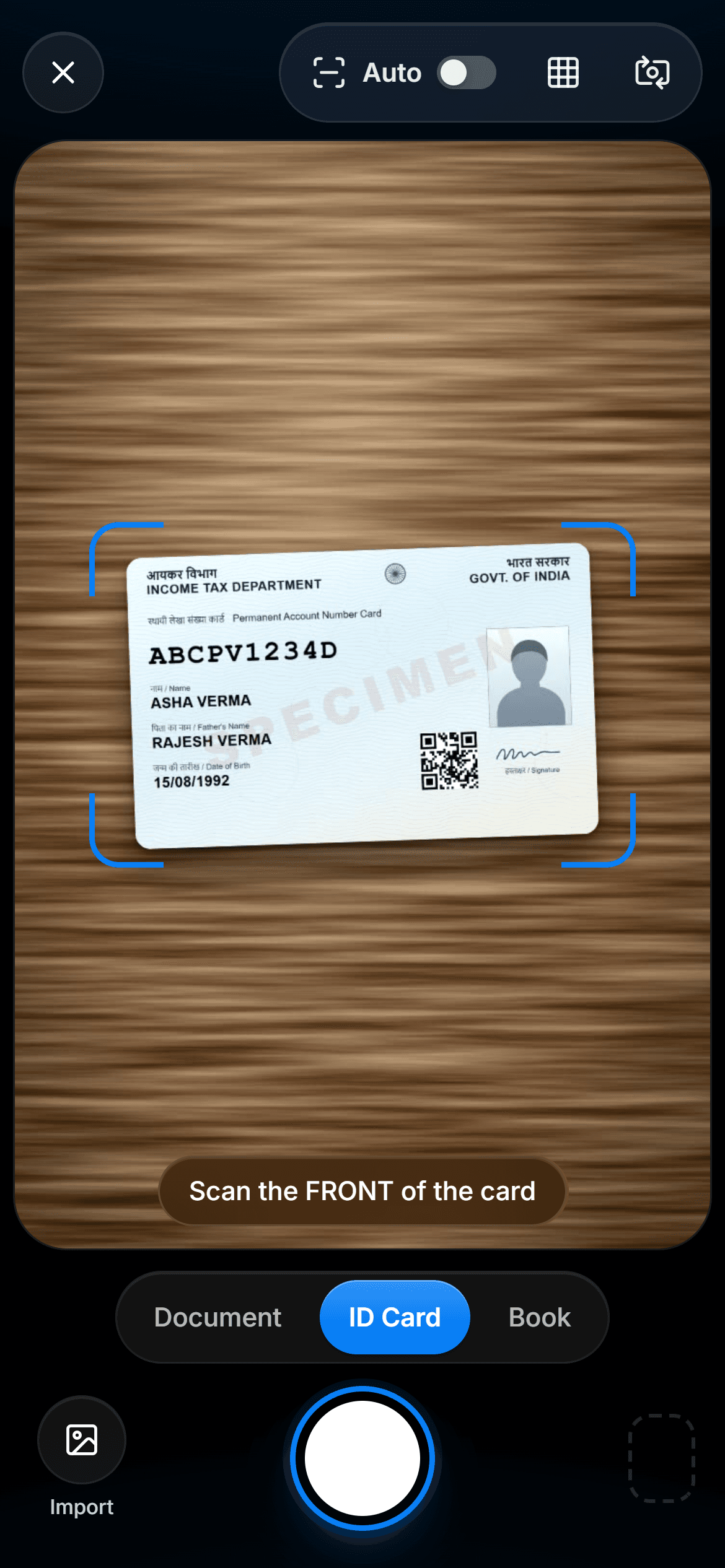
Microsoft retired Lens in 2026: it left the app stores on 9 February and stopped making new scans after 9 March. Here is what Microsoft points to, what else is free, and how to keep the scans you already have.

A real moment
“You open Lens to scan a form and it will not take a new picture. The scanner you used for years has gone quiet, and the document is due today.”
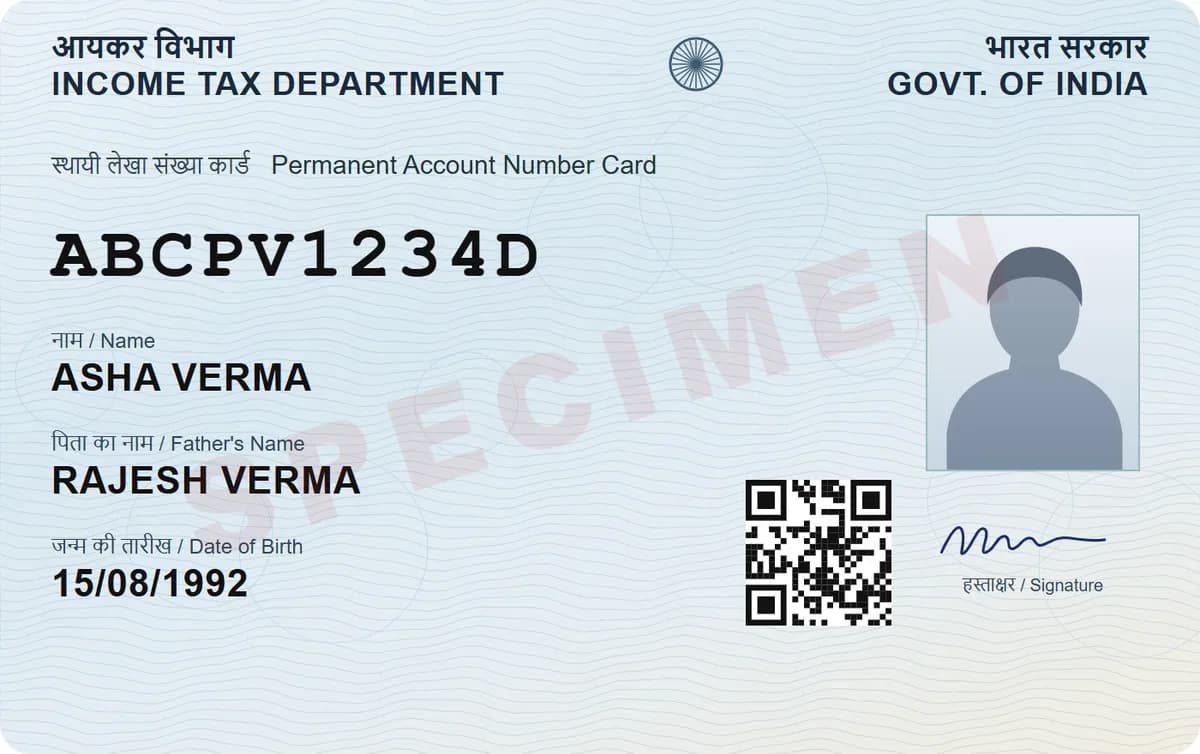
Microsoft recommends the OneDrive app, which scans to PDF but saves only to OneDrive, not to your phone. Other free options: Notes or Files on iPhone, Google Drive on Android, Adobe Scan, and DigiSafe, which scans with no ads, keeps every page encrypted on your device, and opens it offline.
Watch it
DigiSafe's document scanner in 16 seconds
The scanner finds the edges, straightens the page and shoots when your hand is still. ID cards get a front and a back.
Microsoft Lens replacements side by side
| App | Cost | Where scans are saved | Multi-page PDF | Good to know |
|---|---|---|---|---|
| DigiSafe | Free, no ads, no watermark | On your device, plus an encrypted backup | Yes, up to 200 pages | Scans both sides of ID cards, reads ID numbers, opens offline, works in the browser on a laptop too |
| OneDrive app | Free with a Microsoft account | OneDrive only; Microsoft says it cannot save scans on your device | Up to 10 pages on Android, 30 on iPhone | Microsoft's own pick; whiteboard, document, business card and photo modes |
| Apple Notes and Files | Free, built into iPhone | In a note, or a Files folder you choose | Yes | Simplest option on iPhone |
| Google Drive scanner | Free, in the Drive app | Your Google Drive, as a PDF or JPG | Yes | Simplest option on Android |
| Adobe Scan | Free app; paid extras | Adobe Document Cloud, 5 GB free | Yes | Compressing, combining and passwords need a subscription |
Dates and facts from Microsoft's own pages
Free replacements for iPhone and Android
A scanner that keeps scans on your device
Left the app stores
9 February 2026
New scans stopped
After 9 March 2026
Microsoft's pick
OneDrive, which saves to the cloud only
On your device
DigiSafe, free and encrypted
What happened to Microsoft Lens
Microsoft began retiring Lens on iOS and Android on 9 January 2026. It was removed from the App Store and Google Play on 9 February 2026, and it stopped making new scans after 9 March 2026.
Keep the scans you already have
Microsoft says you can still open your earlier scans while the app stays installed and you are signed in to your last active account. So do not uninstall Lens until you have copied every scan you need to somewhere you control.
Microsoft's pick: the OneDrive app
OneDrive scans whiteboards, documents, business cards and photos and saves them as PDFs, up to 10 pages in one scan on Android and 30 on iPhone. Microsoft notes that OneDrive cannot save scans on your device, so every scan goes to the cloud.
The scanner already on your phone
On iPhone, Notes and Files both have Scan Documents, and you can add more pages before saving. On Android, the Google Drive app scans several pages into one PDF or JPG in a Drive folder you choose.
Where DigiSafe fits
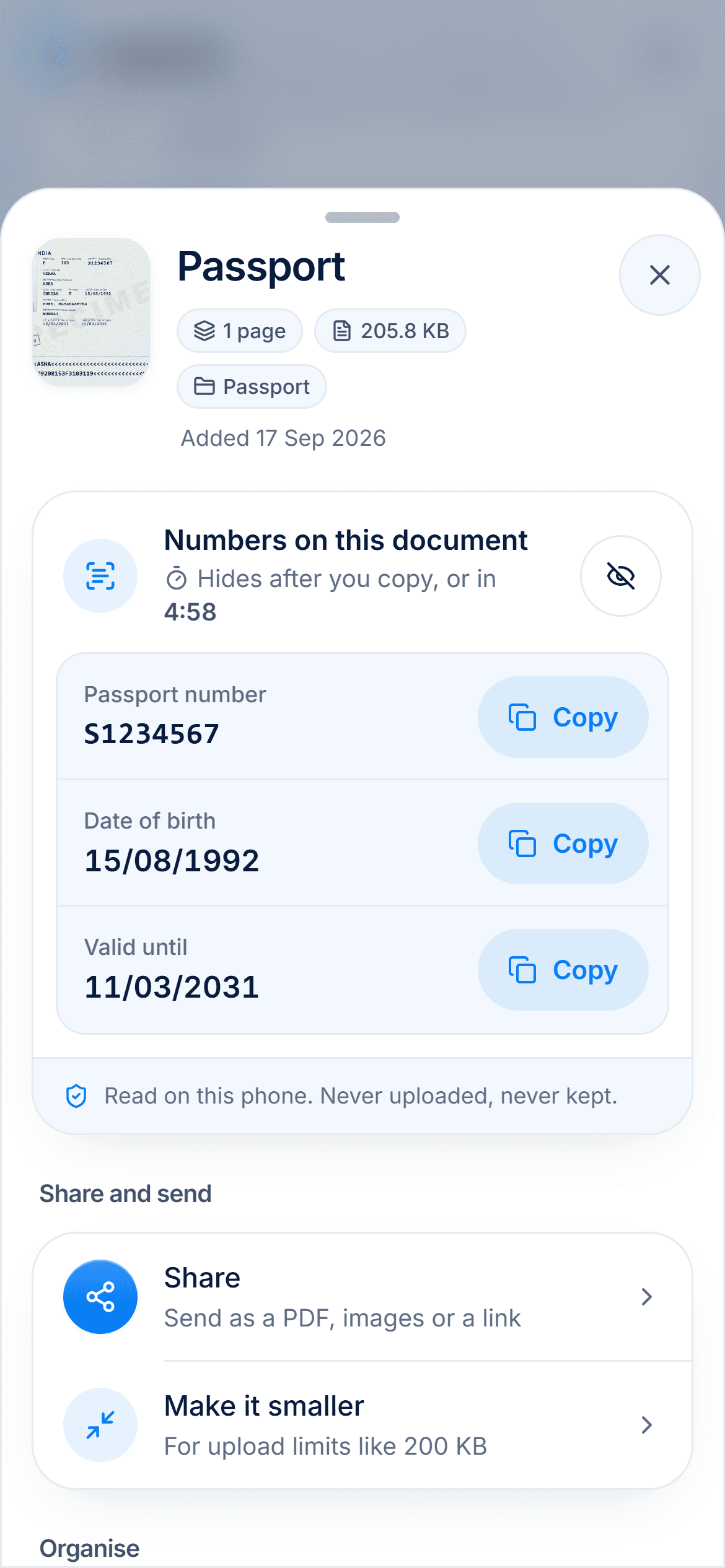
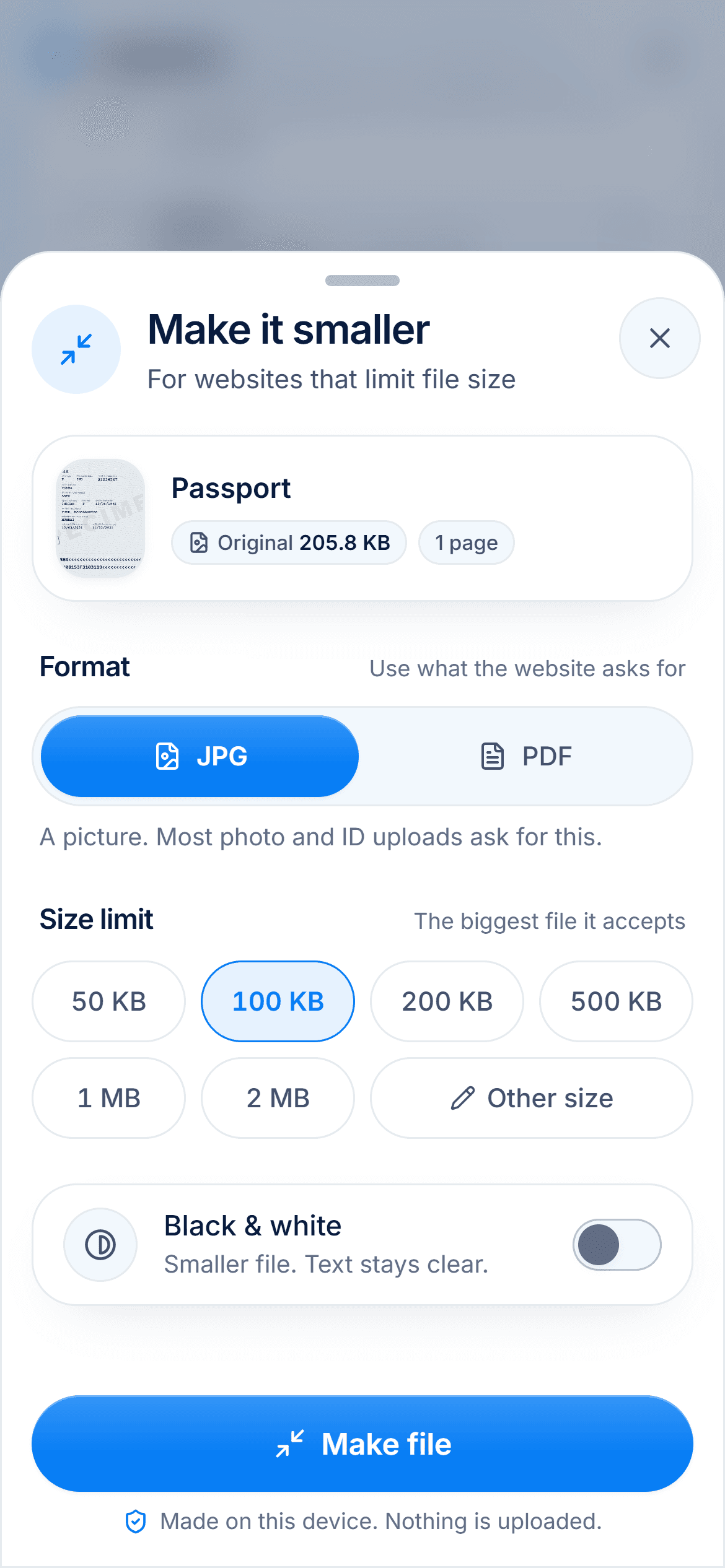
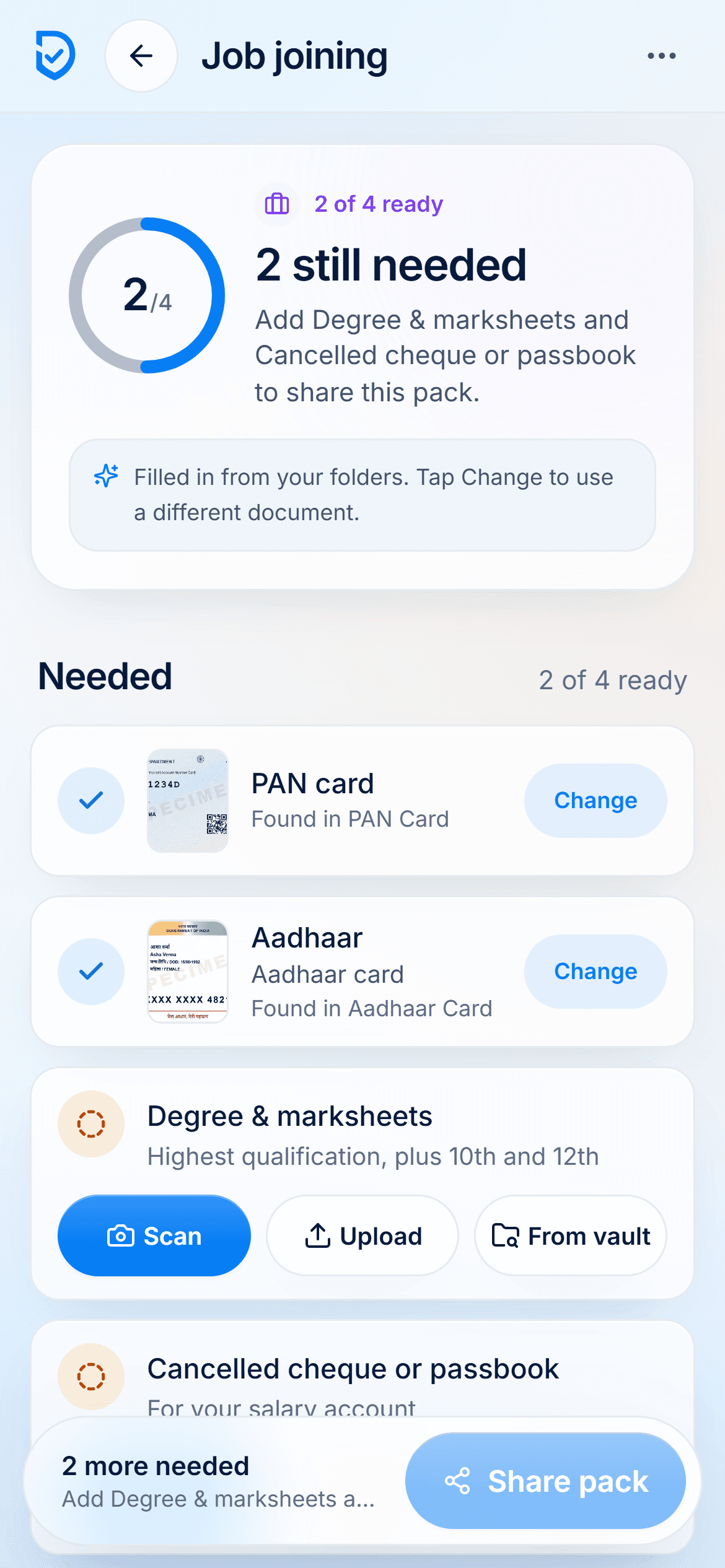
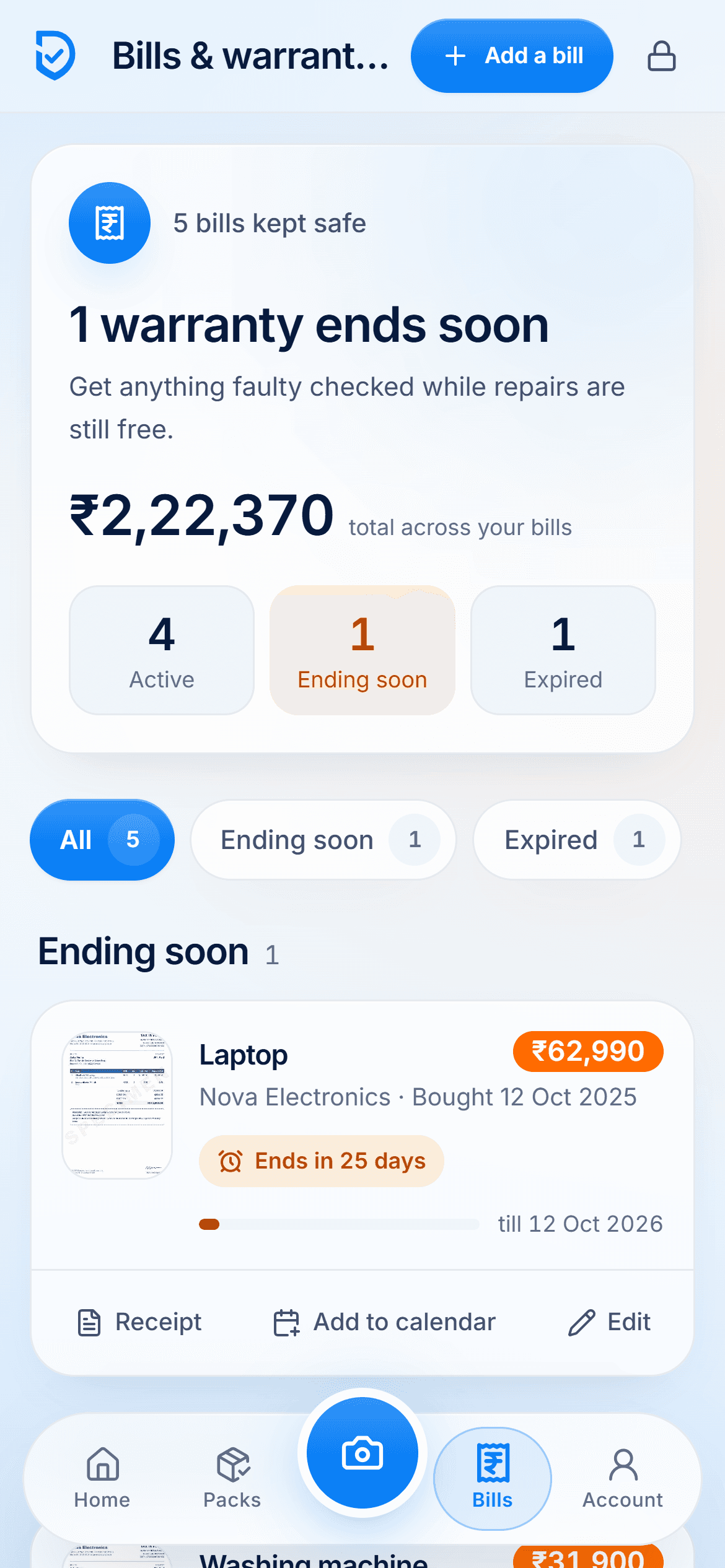
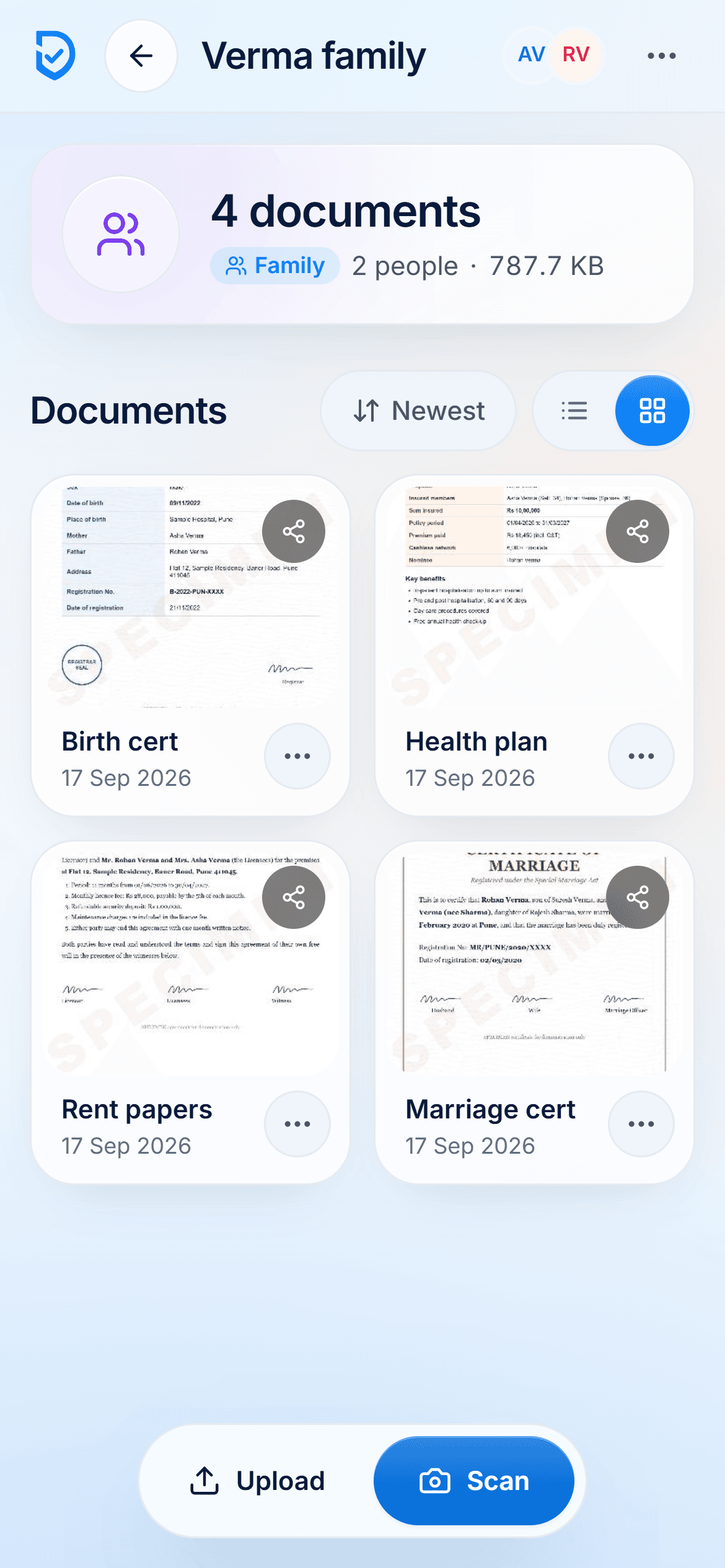
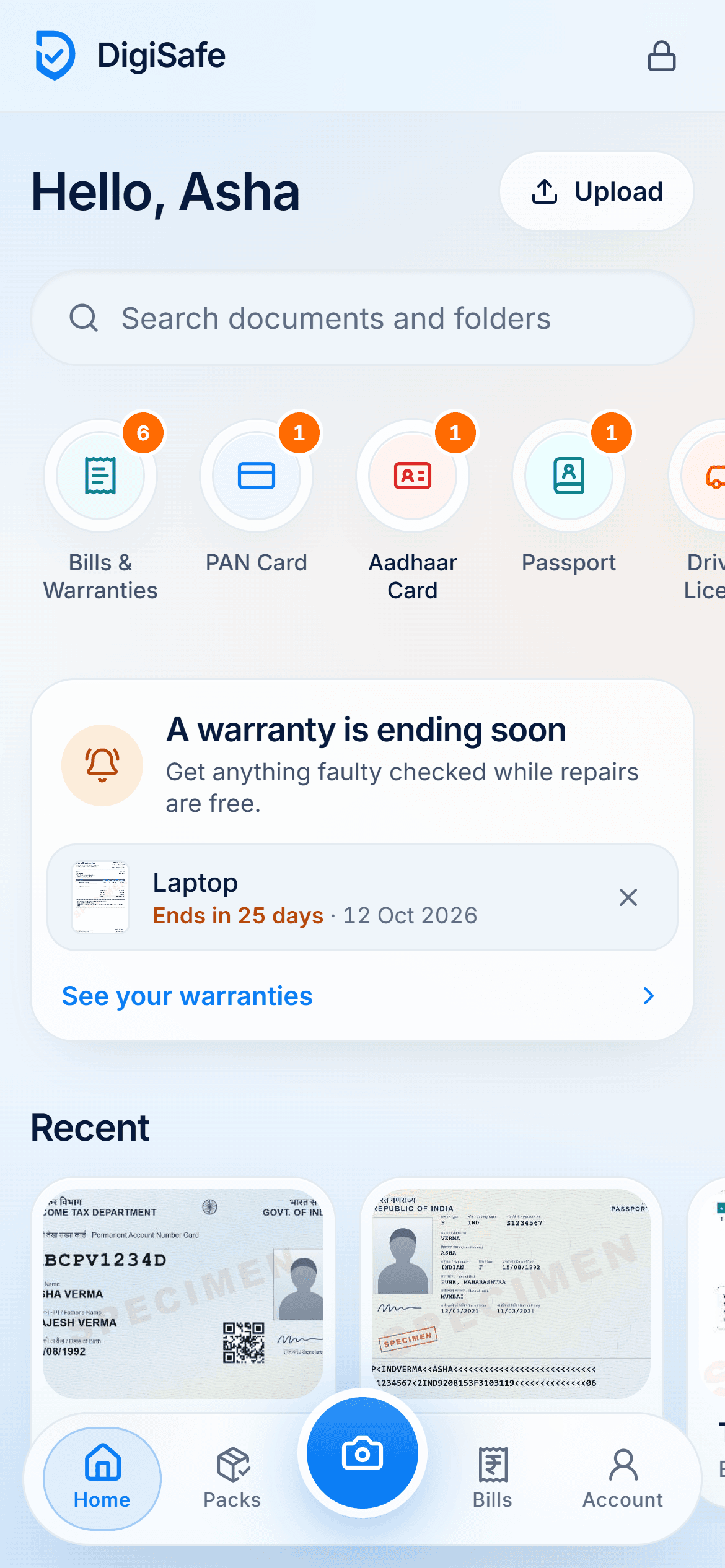
DigiSafe is a scanner and a vault in one. It finds the page edges, straightens the page and scans both sides of an ID card. Every page is encrypted on your device before it is backed up, so your scans open with no signal and nobody else can read them. It also reads ID numbers, hides Aadhaar digits, and makes a copy at the exact size a form asks for.
Step by step
- 1
Before you uninstall Lens, copy out every scan you want to keep.
- 2
Open DigiSafe in your browser and add it to your home screen.
- 3
Tap the scan button and hold your phone over the page.
- 4
Add more pages if the document has them.
- 5
Save it to a folder; it is encrypted on your device.
- 6
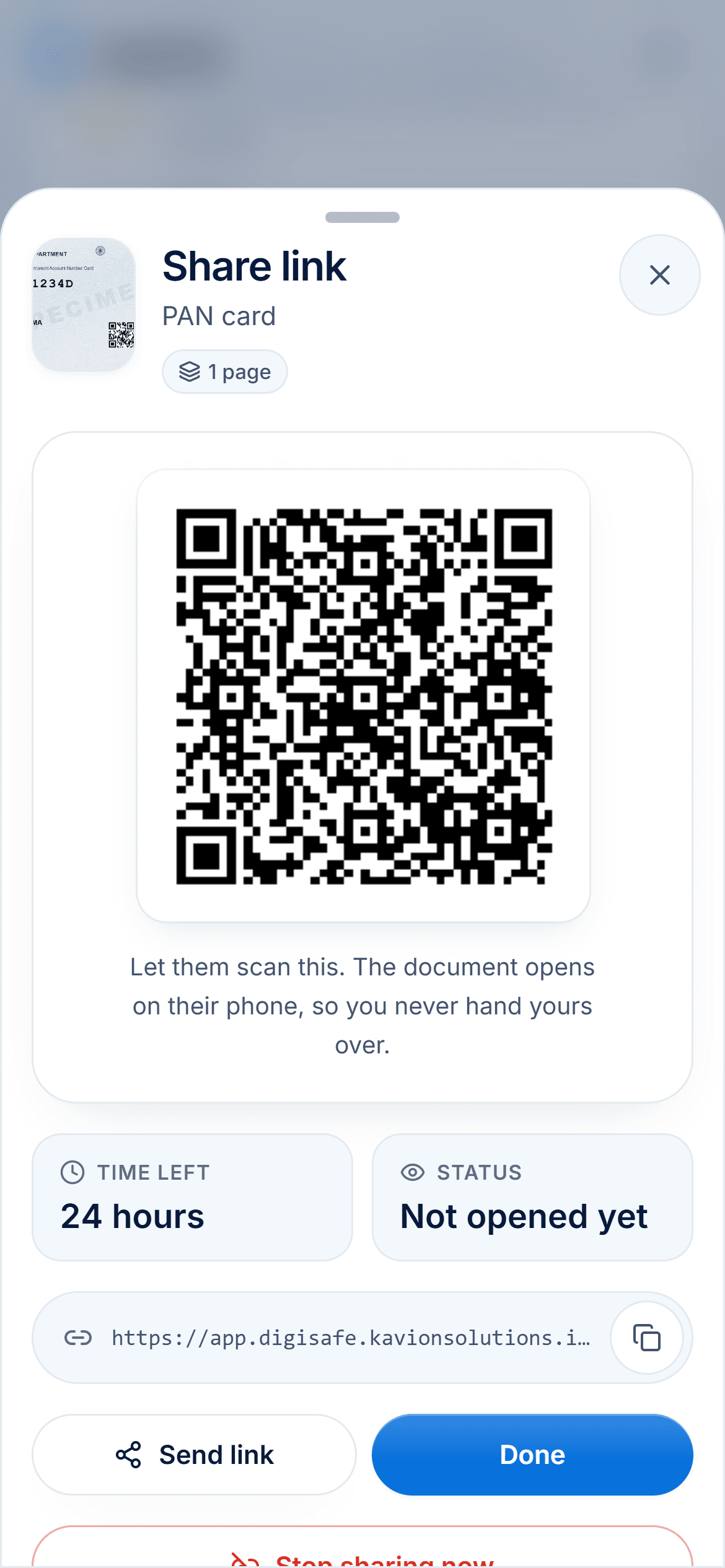
Share it as a PDF, or as a link that expires.
Questions people ask
Is Microsoft Lens discontinued?+
Yes. Microsoft retired Lens on iOS and Android in 2026. It left the app stores on 9 February 2026 and stopped making new scans after 9 March 2026.
What does Microsoft recommend instead of Lens?+
The OneDrive app, which has a built-in scanner. Microsoft notes that OneDrive cannot save scans on your device, only to OneDrive.
Can I still open my old Lens scans?+
Microsoft says yes, as long as the app is still installed and you are signed in to your last active account. Copy the scans you need before you uninstall it.
Is Google Lens the same as Microsoft Lens?+
No. Google Lens gets information about photos and things around you, and can copy or translate text it sees. Microsoft Lens was a document scanner. For saving documents as PDFs, use a scanner such as OneDrive, Apple Notes, Google Drive or DigiSafe.
Which free Microsoft Lens alternative keeps scans on my phone?+
DigiSafe keeps every scan on your device, encrypted, and opens it offline. Apple Notes also saves scans in a note on your iPhone. OneDrive and Google Drive save to the cloud.
Where this comes from
Official sources, dated.
Every requirement on this page comes from the official pages listed here, last checked on 4 October 2026. Rules change and offices can ask for more, so check the official page before you go.
- 1Microsoft Support: Retirement of Microsoft Lenssupport.microsoft.com
- 2Microsoft Support: Scan in OneDrive for Androidsupport.microsoft.com
- 3Microsoft Support: Scan in OneDrive for iOSsupport.microsoft.com
- 4Apple Support: Scan documents on iPhonesupport.apple.com
- 5Google Drive Help: Scan documentssupport.google.com
- 6Google Search Help: Get info about your photos and surroundings (Google Lens)support.google.com
- 7Adobe: Adobe Scan appadobe.com
- 8Adobe: Adobe Scan subscriptionsadobe.com
Read next
Best free scanner apps
The best free scanner depends on what happens after the scan: a quick PDF, searchable text, or a private home for your IDs.
CamScanner alternatives
CamScanner was blocked in India in June 2020, and Microsoft retired Lens in 2026.
Document scanner
Hold your phone over the page and let DigiSafe do the hard part.
Do it in a minute, on your phone.
DigiSafe is free, encrypted on your device, and it works offline.