Guide
How to turn photos into one PDF on your phone
- Photos
- Up to 30 at a time, each up to 30 MB
- Order
- Drag the pages into place, then crop and rotate
- Output
- One PDF with every page, or separate images
Forms ask for one PDF, and your phone gives you five separate photos. Joining them takes a minute, and you do not need to upload anything to do it.

A real moment
“The bank wants your three-page salary slip as a single PDF. You have three photos in your gallery, taken at odd angles on your desk. The top search result is a free converter that wants all three uploaded first.”
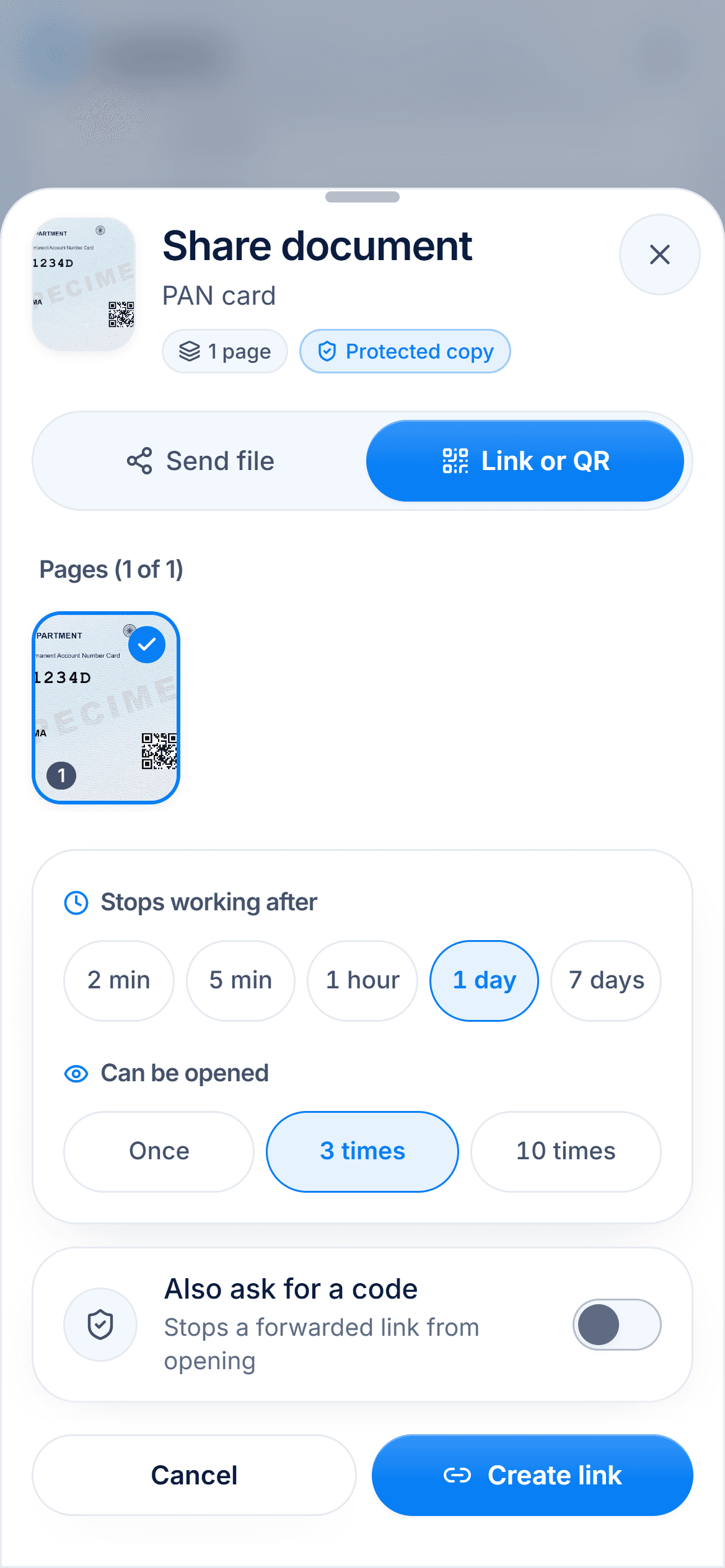
Put the photos into one document, in the right order, then save or share that document as a single PDF. In DigiSafe, tap Upload, pick up to 30 photos, arrange and crop them, then tap Share, Send file and One PDF. Nothing goes to a converter website.
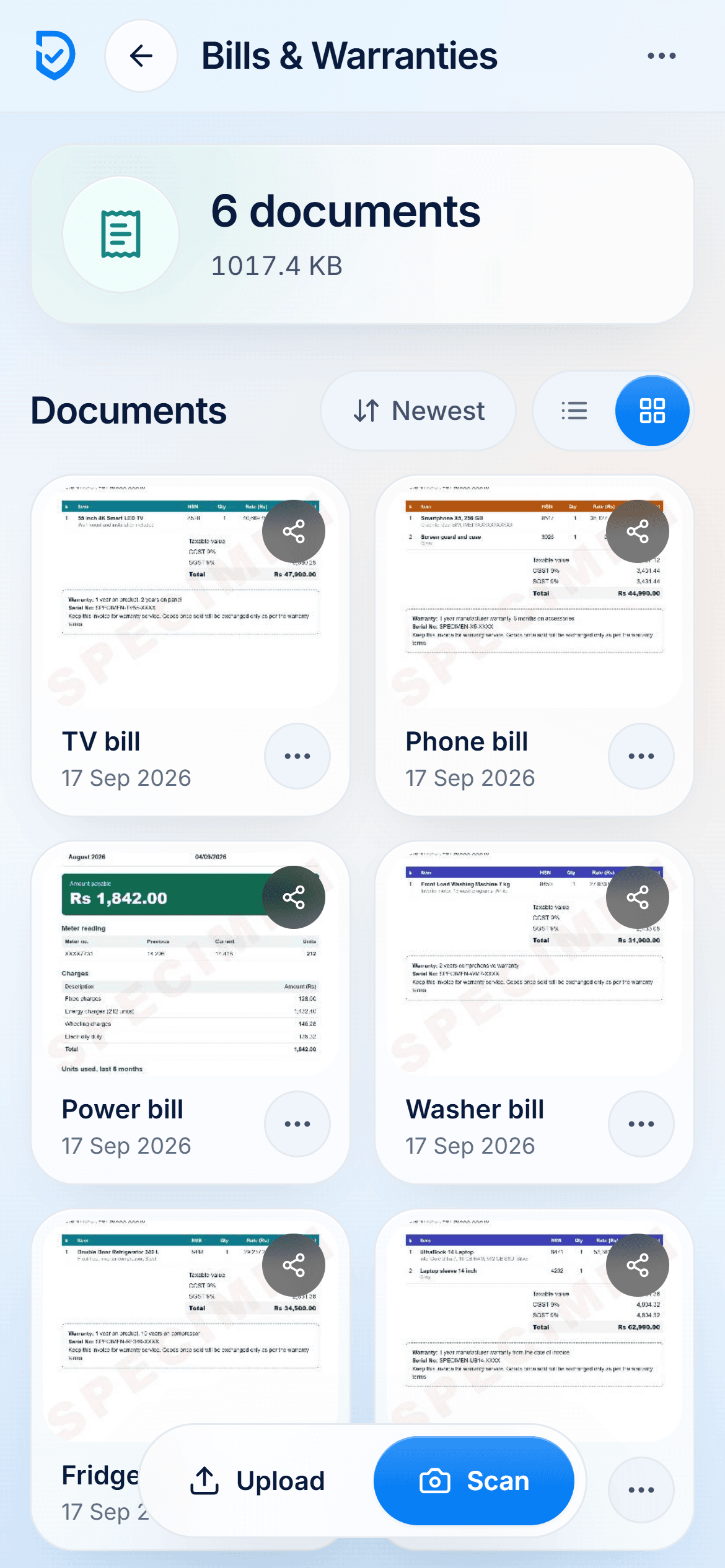
Bring in up to 30 photos at a time
Put pages in order, crop and rotate them
Made on your phone, not on a website
Photos
Up to 30 at a time, each up to 30 MB
Order
Drag the pages into place, then crop and rotate
Output
One PDF with every page, or separate images
Size cap
Make it smaller keeps all the pages in one PDF
Why forms want one file
A portal usually gives you one upload box per document. Three photos of a three-page statement will not fit, and sending them one by one means someone else has to put them back in order. One PDF keeps the pages together and in sequence.
Fix the photos before you join them
A PDF of crooked photos is still crooked. Crop away the desk, turn sideways pages the right way up, and pick a filter that makes the text dark and clear. Then check the order. Page 2 sitting in front of page 1 is a common reason to be sent back.
Think twice about converter websites
Most free JPG to PDF sites upload your photos to their server first. For a salary slip, an ID card or a bank statement, that means a copy on a computer you know nothing about. Doing it on your phone keeps it with you.
Watch the size limit
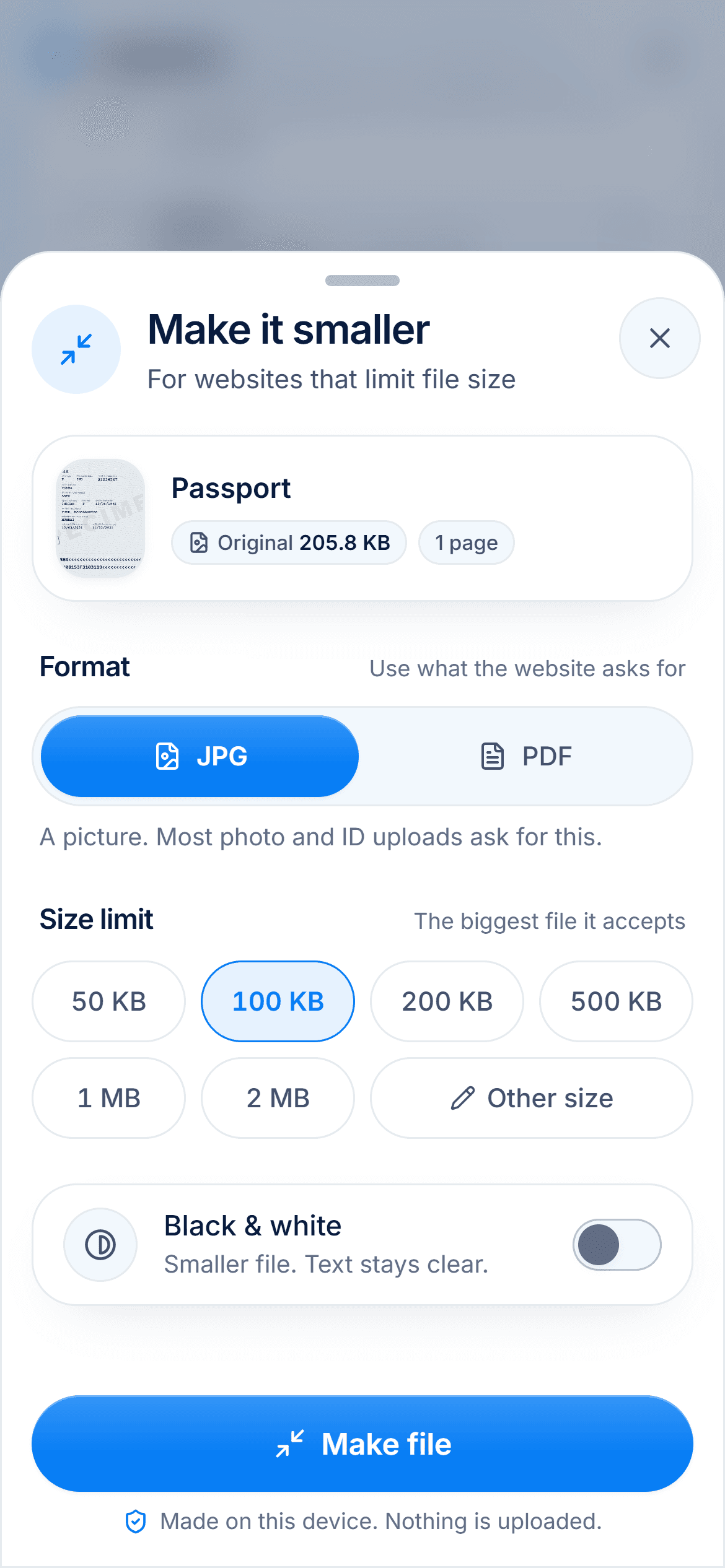
A PDF of several phone photos can be large, and many forms cap a PDF somewhere between 500 KB and 2 MB. If yours does, use Make it smaller, choose PDF and pick the limit. All the pages stay in one file.
Watch it
DigiSafe's document scanner in 16 seconds
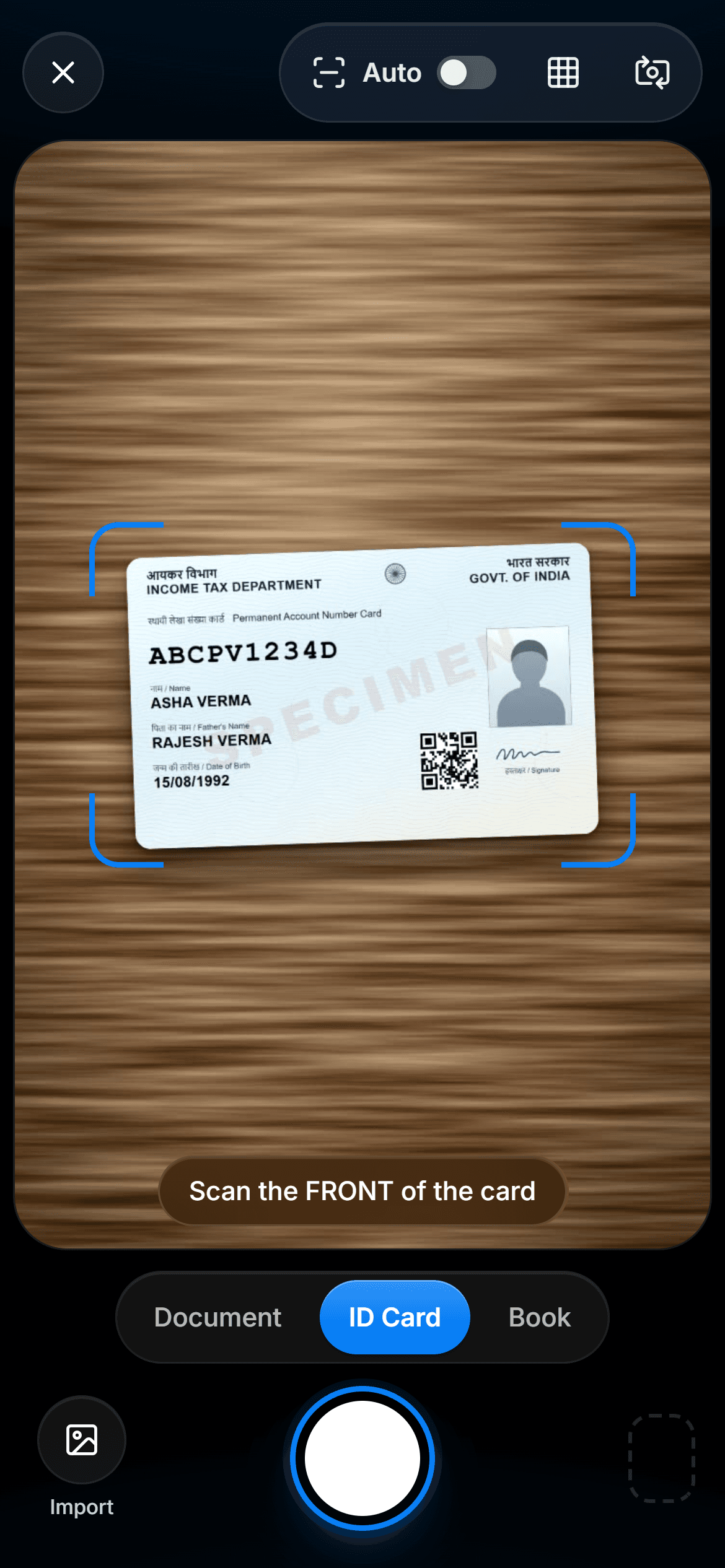
The scanner finds the edges, straightens the page and shoots when your hand is still. ID cards get a front and a back.
Step by step
- 1
Open a folder in DigiSafe and tap Upload.
- 2
Pick your photos, up to 30 at a time.
- 3
Drag the pages into order, then crop, rotate and pick a filter.
- 4
Name the document and save it.
- 5
Tap Share, then Send file, and choose One PDF.
- 6
If the form caps the size, use Make it smaller and choose PDF instead.
Questions people ask
Can I add a page I have not photographed yet?+
Yes. Scan it with the camera before you save, and it joins the same document. Then drag it into the right place.
Can I put only some of the pages in the PDF?+
Yes. When you share, pick the pages you want. Only those go into the PDF.
Is the PDF I send encrypted?+
No. It is an ordinary PDF, because that is what a form needs. Your own copy in DigiSafe stays encrypted.
What if I already have a PDF?+
Upload it as it is. DigiSafe keeps a PDF exactly as you imported it, and can make a smaller copy if a form needs one.